4.15Assign Member Loads
•From the Analyze menu, select Member Loads.
•Open the LOAD CASE drop-down list and select DEAD.
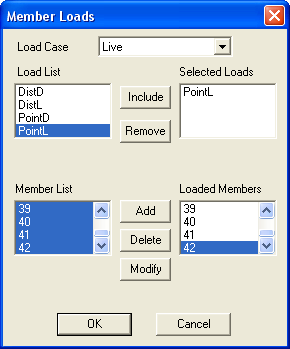
Figure 4-14 Assign Member Loads
•From the LOAD LIST list box, select DISTD.
•Choose INCLUDE.
•From the MEMBER LIST list box, select members 19 through 30.
•Choose ADD.
•From the LOAD LIST list box, select POINTD.
•Choose INCLUDE.
•From the SELECTED LOADS list box, select DISTD.
•Choose REMOVE.
•From the MEMBER LIST list box, select members 31 through 42.
•Choose ADD.
•Open the LOAD CASE drop-down list and select LIVE.
•From the LOAD LIST list box, select DISTL.
•Choose INCLUDE.
•From the MEMBER LIST list box, select members 19 through 30.
•Choose ADD.
•From the LOAD LIST list box, select POINTL.
•Choose INCLUDE.
•From the SELECTED LOADS list box, select DISTL.
•Choose REMOVE.
•From the MEMBER LIST list box, select members 31 through 42.
•Choose ADD.
•Choose OK.