3.41Define Member Groups
The analysis results under the different load combinations are output, along with the results envelopes, for each defined member. Using the Process/Member Group command, you can group several members together and get the maximum and minimum results of all these members under all loading combinations. Typical member groups can be columns of the same tributary area at the same level or beams of equal spans and loading. Envelope results provide you with a summary of member results to be used in designing the members of the same group.
•From the Process menu, select Member Group. The dialog box of Figure 3-30 appears.
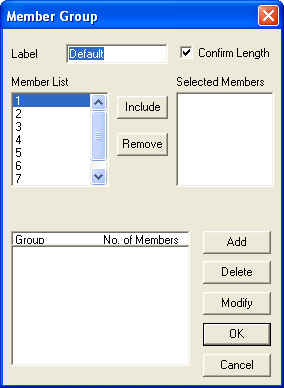
Figure 3-30 Member Group dialog box
•In the LABEL text box, enter a group label.
•Select or clear the CONFIRM LENGTH check box. If this option is selected, the program checks all selected members to make sure that they have the same length. If you clear this option, be very careful in selecting the grouped members. If you select members of different length to be in one group, the group results can be misleading since the output results will not be compared at the same location along a member length.
•From the MEMBER LIST list box, select the member that you want to add to the group.
•Choose the INCLUDE button. The member is added to the SELECTED MEMBERS list box. Note that if you select members with different lengths and the CONFIRM LENGTH option is ON, only the members with the same length as the first selected member are added.
•Repeat the steps above until all members that you want to group are in the SELECTED MEMBERS list box. If you added a member to the SELECTED MEMBERS list box by mistake, delete that member by selecting it in the list box and choose the REMOVE button.
•Choose the ADD button. The group just defined is added to the list box at the bottom.
•Repeat the steps above for each group that you have.
•To edit a group that has already been added to the list box, select that group from the list box, edit its label or selected members, and choose the MODIFY button.
•To remove a group that has already been added to the list box, select that group from the list box and choose the DELETE button.
•02Choose the OK button.